
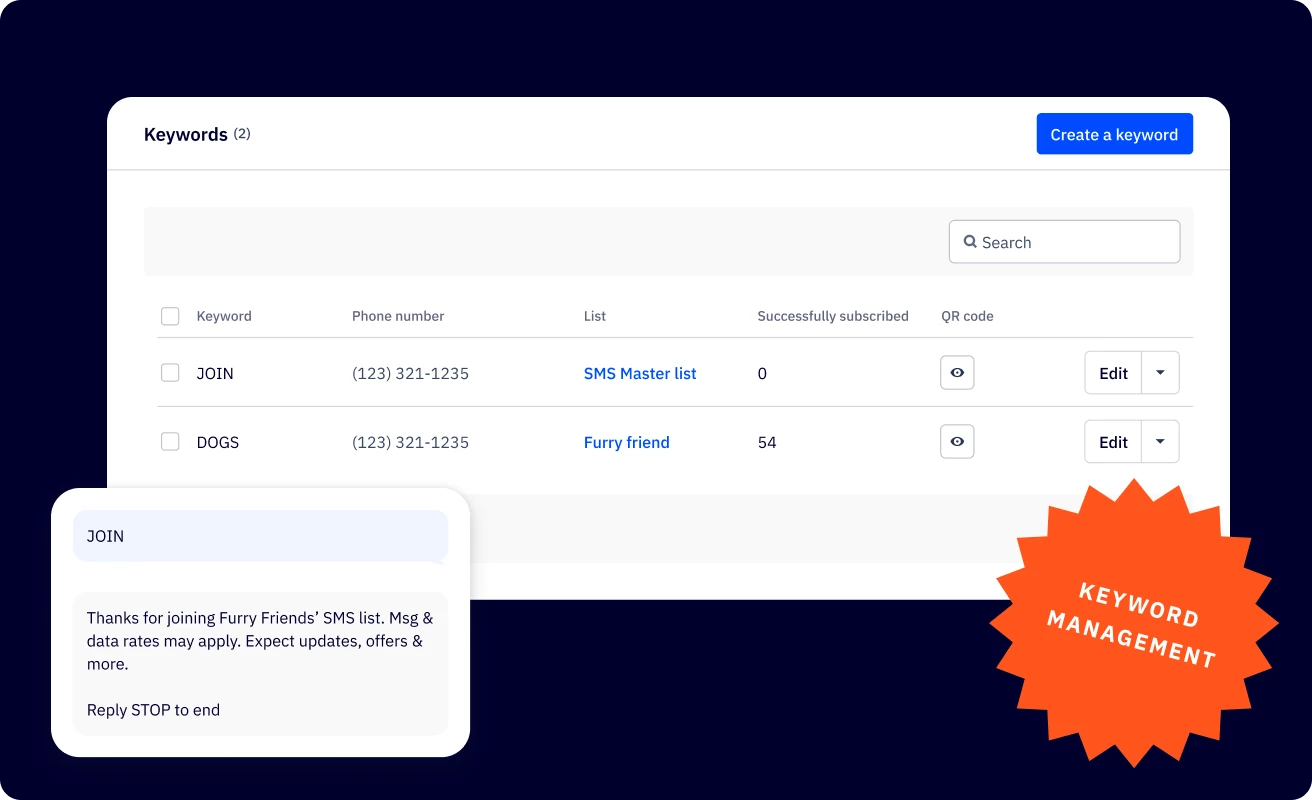


We're excited to announce that SMS keyword management is now easier to find and use, with a new home directly in the SMS dashboard. We're also introducing native QR code generation, making it faster to grow your SMS audience whether you're capturing opt-ins online or in-store.
Key Features
- Enhanced Keyword Management: SMS keywords are now discoverable and manageable directly within the SMS dashboard, no more navigating through list settings to find and configure them.
- QR Code Generation: Automatically generate a scannable QR code for every SMS keyword you create. When scanned, it opens the customer's messaging app with your keyword pre-filled, making opt-in effortless.
- Downloadable QR Codes: Download your QR code as an image file and place it anywhere your customers are, from in-store signage and product packaging to digital screens and landing pages.
- Shareable Opt-in Link: Prefer your own QR code generator? Copy the SMS url string directly and use it however you like.
Benefits
- Grow your SMS list faster: A more accessible keyword setup means fewer missed opportunities to capture subscribers, especially during high-traffic moments like sales, events, and in-store promotions
- Capture subscribers online or offline: Downloadable and printable QR codes let you turn physical touchpoints like storefronts, receipts, and event booths into SMS opt-in moments.
- Less time configuring, more time marketing: Keyword setup lives right in the SMS dashboard so you can find it quickly and get up and running fast.
Setup Instructions
This feature is available to customers on Plus, Professional, and Enterprise plans with the SMS Marketing add-on who have a registered, dedicated phone number.
To create a keyword and generate a QR code:
- Click SMS on the left menu, then click Keywords
- Click Create a keyword and fill in your keyword, phone number, list, and confirmation message
- Optionally, toggle on collect phone number only if you don't want to require an email address
- Click Save and your QR code will be generated automatically and ready to download
Additional Resources